Adjusting Vectrex Brightness and Focus Pots Without Burn-In Risk
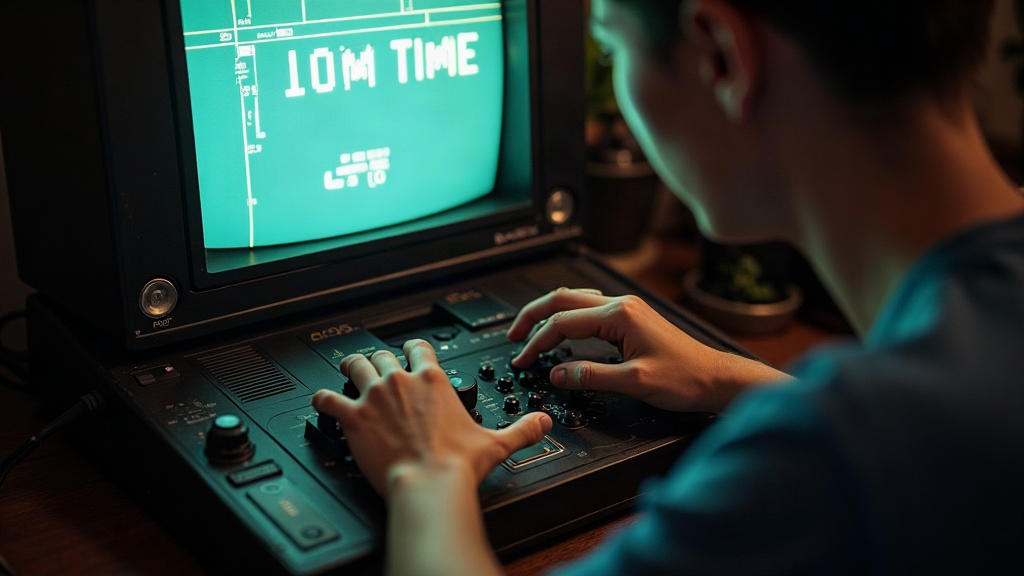
Adjusting Brightness and Focus on a Vectrex Without Burning the Tube
Dialing in the brightness and focus pots on a Vectrex sounds like a five-minute job, and it can be, but rush it or get careless and you risk etching a permanent ghost image into the CRT’s phosphor coating. The fix for that risk is simple enough: calibrate using a moving test pattern, keep brightness as low as you can while still reading the screen clearly, and never let a static image sit there for more than a few seconds while you work.
Why Vectrex Tubes Burn In So Easily
A raster TV refreshes the entire screen evenly, line by line, frame after frame. A Vectrex doesn’t work that way. It draws vector lines by steering the electron beam directly along specific paths, over and over. If that beam keeps hitting the same coordinates (and on a vector display it does, constantly, especially during static menus or that single bright line people use to test focus) the phosphor in that one spot wears down faster than everything around it. The result is a dim or dark “shadow” that stays visible no matter what you put on screen afterward.
Vectrex games lean heavily on static elements too: score counters, title screens, the “Mine” overlay in Mine Storm. That makes these tubes noticeably more prone to localized wear than a typical arcade monitor, which usually has constantly shifting imagery to spread the load around.
What You’ll Need
- An insulated (non-conductive) trim tool, Phillips or flathead depending on your unit, for the two internal pots
- A test cartridge, or just Mine Storm’s attract mode with vectors in motion (skip the static “press button” screen entirely)
- A multimeter, optional, useful if you’ve got service documentation with reference voltages
- Decent lighting plus a mirror or flashlight, since the pots sit near the flyback/neck board and aren’t easy to see
Safety note: the Vectrex power supply holds high voltage even unplugged. Discharge the capacitors properly before you go near anything, and stay away from the flyback transformer area. If this isn’t familiar territory for you, pay a technician. It’s not worth guessing.
Step-by-Step: A Low-Risk Adjustment Procedure
1. Warm Up on a Moving Pattern
Boot into Mine Storm, or any demo mode where the vectors keep moving. Do not calibrate against a static title screen or pause menu. Even 20 to 30 seconds of a bright static image at high brightness is enough to start etching the phosphor, and you won’t notice until it’s too late.
2. Start Brightness Low, Then Raise It Slowly
Find the brightness pot, usually labeled BRIGHT or something close to it on the analog board. Turn it all the way down, then nudge it up gradually until the lines are clearly visible but not blooming (that soft glow that spreads around each line when intensity is too high). Blooming is the single biggest warning sign for burn-in risk, so treat it as your ceiling, not a style choice.
- Aim for crisp lines, not a hazy glow
- Want it to look brighter? Turn up the room lights instead of the pot. Your eyes adjust; the phosphor doesn’t get a say
3. Adjust Focus Using the Same Moving Content
With brightness set, find the focus pot. Watch diagonal and curved lines while you adjust them, since those are the hardest shapes to get sharp. Move in small increments, a quarter turn at most, and judge each setting within a few seconds rather than staring at it.
- Properly focused vectors look like thin, even-width lines
- Over-focus and you’ll get flicker or breakup; under-focus and the lines turn fuzzy and thick
4. Recheck Brightness After Dialing in Focus
Focus adjustments can shift how bright the image appears, even without touching the brightness pot. Do one more low-intensity pass just to make sure blooming hasn’t crept back in.
5. Test With Actual Gameplay
Play a few minutes of a real game with varied vector movement instead of parking the console on a single screen. This is where you confirm the settings actually hold up, not just look good for ten seconds.
Keeping Burn-In Away During Normal Use
- Don’t leave the Vectrex sitting on a paused screen or title screen for long stretches
- Run slightly dimmer than feels necessary as your everyday setting. A touch too dim beats a touch too bright, every time
- Power the console off between sessions instead of leaving it idle on a static image
- Rotate which games you play so the same UI elements, score boxes, menus, whatever, aren’t always hammering the same patch of phosphor
How to Spot Early Burn-In
- A faint ghost outline showing up on a blank or dark screen
- Brightness that looks slightly uneven in certain regions no matter what’s actually displayed
Mild burn-in is mostly cosmetic, and it won’t get noticeably worse if you clean up your brightness habits from here on. It also won’t go away. Once it’s there, it’s there, which is exactly why prevention matters more than any cure.
Conclusion
The whole process really comes down to one rule: adjust under moving content, keep intensity as low as you can get away with, and never let a static screen linger. Take it slow, make small turns, and you’ll end up with sharp, well-focused vector graphics without gambling your CRT’s phosphor on impatience.