Calibrating a BVM or PVM CRT with a Colorimeter for Accurate Color
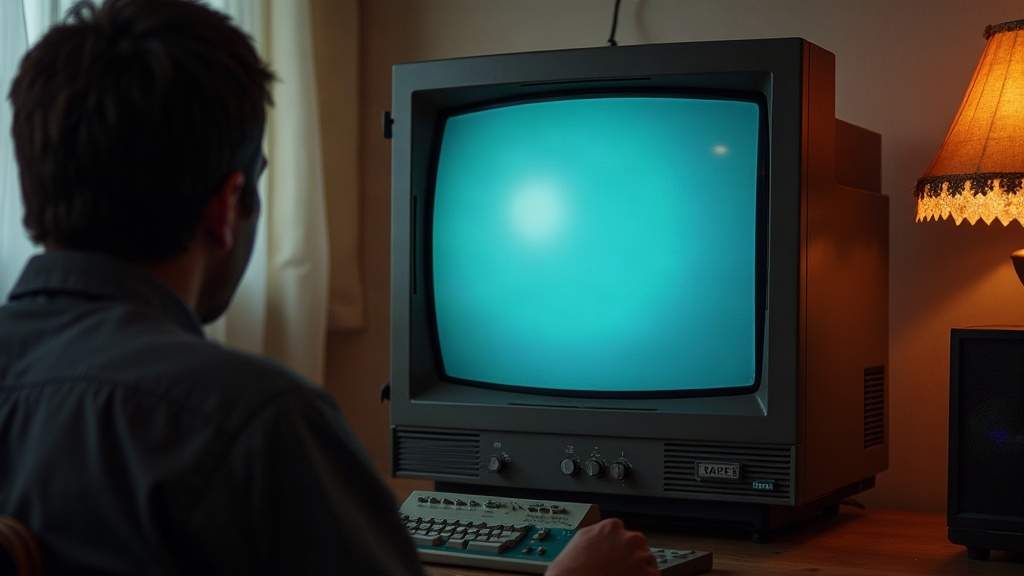
Calibrating a BVM or PVM CRT with a colorimeter is really the only way to get back the accurate color, gamma, and grayscale these professional monitors were built to produce. Decades of phosphor aging, drift in the electron guns, and service menus that someone fiddled with years ago mean most used broadcast monitors are nowhere near spec, even if they look “fine” at a glance. A colorimeter plus the right software turns guesswork into something measurable and repeatable.
Why Trust a Colorimeter Over Your Eyes
Your eyes adapt to whatever’s in front of them. Stare at a CRT with a greenish tint for ten minutes and your brain just stops registering the green, it recalibrates itself without asking you. A colorimeter doesn’t do that. It spits out absolute luminance and chromaticity numbers, cold and objective, giving you something concrete to chase instead of a feeling.
This matters a lot for retro gaming and video preservation. The whole point is matching the color grading that artists and developers actually saw on their reference monitors back in the day, usually targeting SMPTE-C or EBU phosphor standards, a D65 white point, and gamma somewhere around 2.2 to 2.4.
What You Need
- A colorimeter or spectroradiometer: Datacolor Spyder, X-Rite i1Display Pro, or a Klein K10-A. CRT phosphor spectra can confuse cheaper colorimeters, which is why purists lean toward the i1 Pro or Klein gear.
- CRT calibration software: HCFR Colormeter is free and open source. ChromaPure or CalMAN are worth it if you want a guided, hand-holding workflow.
- A known-good signal source: a PC with an HDMI-to-component/RGB converter, a RetroTINK, or an OSSC feeding test patterns.
- Service manual access: Sony’s BVM/PVM line requires getting into a service menu via remote codes or jumper pins. Grab the manual for your exact model, a BVM-20F1U is not the same beast as a PVM-14L5, and the menu structure will differ.
Step-by-Step Calibration Process
1. Warm Up the Monitor
Give the tube 20 to 30 minutes to reach thermal and electrical stability. Calibrate it cold and you’ll be chasing numbers that drift all over the place within the hour.
2. Set Up Test Patterns
Feed it standardized patterns: 100% white, grayscale steps from 10% to 100% IRE, and color bars. Most BVMs have built-in color bar generators accessible right from the front panel. Use those when you can, since they skip your signal chain entirely and remove one more variable.
3. Measure and Adjust Grayscale First
- Mount the colorimeter flush against the center of the screen, shielded from any ambient light in the room
- Measure the white point at 100 IRE and adjust the service menu’s G2/Screen and Bias controls until you land on D65 (6500K), or whatever your target standard is
- Work your way down through 20 IRE and 80 IRE using Sub-brightness and Sub-contrast (sometimes labeled “Drive” and “Cutoff” depending on the model) until the grayscale tracks evenly top to bottom. This single step is the biggest contributor to how accurate the color looks overall.
4. Calibrate Color Decoder and Saturation
Using color bar patterns and a blue filter (or just reading the colorimeter directly), adjust Hue, Saturation (Chroma), and the individual gun gains until the bars line up with SMPTE-C targets. HCFR plots your measurements against the target coordinates on a CIE chart as you go, so you can actually watch the dots converge.
5. Verify Gamma
Check the gamma curve across the full IRE range. Most BVMs let you fine-trim gamma in the service menu. Aim for 2.35 to 2.4 if you’re going for a broadcast reference look, or 2.2 if general accuracy is the goal.
6. Re-check After Cooldown and Reboot
Power-cycle the monitor, let it warm up again, and re-measure. Service menu settings can shift slightly once they fully commit to NVRAM, so don’t assume your first pass is final.
Common Mistakes to Avoid
- Measuring in a lit room. Ambient light throws off colorimeter readings badly. Do this in near-total darkness, blackout curtains if you have them.
- Skipping grayscale first. Adjusting saturation before grayscale is set wastes your time, since any change to black level shifts how the color reads afterward.
- Using consumer colorimeters not built for CRT phosphors. Some budget sensors are tuned for LED/LCD spectra and misread the narrow phosphor emission lines a CRT produces. If numbers look implausible, cross-check with a spectro before trusting them.
- Ignoring geometry and convergence. Perfect color means nothing if misconvergence is smearing red and blue fringes all over the image.
Conclusion
Calibrating a BVM or PVM CRT with a colorimeter turns a tired, color-shifted tube back into a genuinely accurate reference display, the same experience developers and video engineers had decades ago at the source. It takes patience, the right tools, and sticking to the order: warm up, grayscale, color, gamma, then verify everything again. Do it properly and the difference is obvious the moment you look at it. Honestly, it’s the single best upgrade you can make to a retro setup, short of swapping out the source hardware itself.