Mega EverDrive Pro: Run Sega CD Games Without Burning Discs
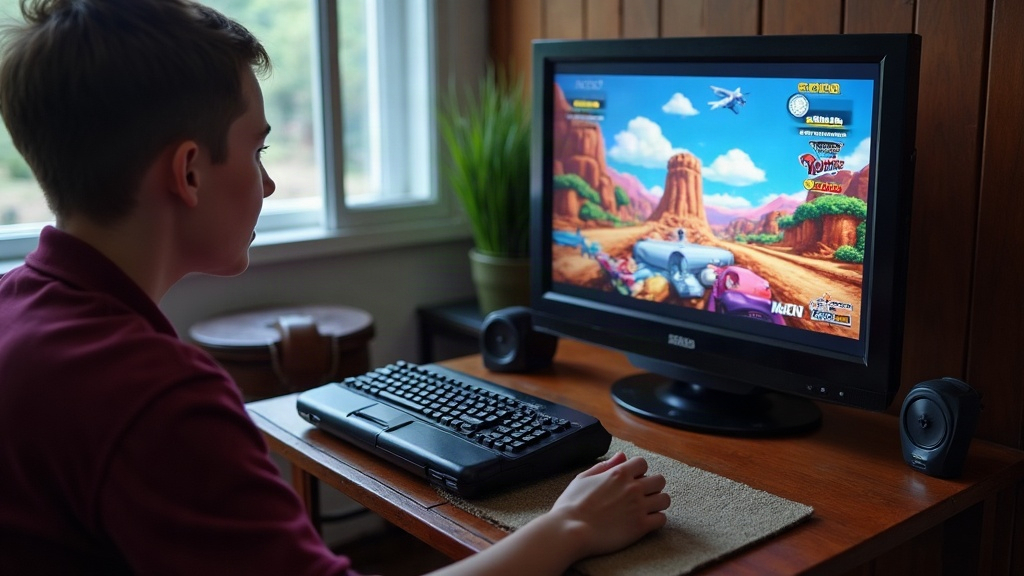
How the Mega EverDrive Pro Runs Sega CD Games Without a Disc
If you own a Sega CD or Mega CD add-on, you already know the drill: brittle laser assemblies, discs that refuse to spin up, and the nagging fear of burning yet another coaster just to replay Lunar or Sonic CD one more time. The Mega EverDrive Pro gets around all of that by letting you run Sega CD games straight from an SD card through the cartridge slot, bypassing the optical drive almost entirely. Here’s exactly how it works, what you’ll need, and how to set it up without tearing your hair out.
How the Mega EverDrive Pro Handles Sega CD Games
Unlike a standard Genesis flash cart, the EverDrive Pro packs special hardware that talks to the Sega CD’s expansion port and RAM cartridge slot. Instead of pulling data off a physical disc, the console’s own Sega CD BIOS gets tricked into loading game images (BIN/CUE or CHD) directly from the EverDrive’s SD card.
A few things worth knowing up front:
- You still need a working Sega CD / Mega CD unit. The EverDrive Pro doesn’t replace the add-on itself, only the disc.
- The cart slots into the Genesis cartridge port like any other game, but a second cable or adapter links it to the Sega CD’s RAM cart port (the exact setup depends on your model and revision).
- The laser lens never touches game data at all, which buys a lot of extra life for a part that’s getting harder to find or repair every year.
What You Need Before You Start
- A genuine Mega EverDrive Pro with Sega CD support firmware. Check the product page carefully, because not every revision supports this out of the box.
- A working Sega CD/Mega CD unit with a functioning BIOS and a reliable power supply.
- An SD card, FAT32 formatted. Stick to 32GB or smaller for the safest compatibility.
- Sega CD BIOS files matching your region (US, EU, or JP). The system still needs its original firmware to boot, so there’s no skipping this step.
- Game images in BIN/CUE, ISO, or CHD format, each tucked into its own folder.
Step-by-Step Setup
1. Update the Firmware
Grab the latest EverDrive Pro OS from the official Krikzz site. Firmware updates show up fairly often and they tend to fix Sega CD compatibility quirks, audio sync glitches, and loading bugs that older versions struggle with.
2. Load the BIOS
Drop the correct regional BIOS file into the root or designated system folder on the SD card, named exactly as the EverDrive documentation specifies (even one character off and it won’t be recognized). Skip this and the system simply won’t know the virtual disc exists.
3. Organize Your Game Library
Set up a clean folder structure, something like /SegaCD/Lunar - Eternal Blue/, with the matching BIN/CUE pair inside. Keep filenames plain. Special characters, stray apostrophes, weird symbols, these are a surprisingly common cause of load failures.
4. Connect the Hardware
Plug the EverDrive Pro into the cartridge slot and hook up the required adapter cable to the Sega CD expansion port. Power on the Genesis first, then the Sega CD unit, same boot order you’d use with a real disc.
5. Launch and Play
From the EverDrive Pro menu, pick the Sega CD BIOS loader, then browse to your game folder. The system boots into the BIOS, “sees” the virtual disc, and loads the game exactly as it would from a real CD, Red Book audio tracks included, so games with CD-quality soundtracks still sound the way they’re supposed to.
Common Issues and Fixes
- Black screen on boot: Nine times out of ten, this means a missing or mismatched region BIOS.
- Choppy CD audio: Switch to CHD format instead of raw BIN/CUE, or double check that your dump isn’t corrupted in the first place.
- Game not detected: Look at your folder naming and confirm the CUE sheet points to the correct BIN file path.
- Save data not persisting: Some titles need the EverDrive’s internal save-state feature turned on, since RAM cart emulation isn’t identical across every game.
Why Skip Burning Discs Altogether?
Burned CD-Rs don’t age well. Plenty go unreadable within just a few years, and a lot of Sega CD laser mechanisms simply can’t be serviced anymore. Loading games from an SD card instead means:
- No disc rot, no burn failures
- Instant switching between games, no ejecting or swapping anything
- Far less mechanical wear on a laser assembly you can’t easily replace
- One SD card holding your entire Sega CD library, no shelf of jewel cases required
Conclusion
The Mega EverDrive Pro takes a fragile, disc-dependent machine and turns it into something that feels a lot closer to a modern cartridge console. By pulling the Sega CD BIOS and game images straight off an SD card, you sidestep the hassle and risk of burning discs while keeping your original hardware running for years longer than it otherwise would. Get the BIOS and folder structure right once, and after that, swapping between Sega CD classics is as easy as scrolling through a menu. No laser stress, no coasters, no waiting around.