Running Sharp X68000 Games via SCSI2SD: A First-Time Import Guide
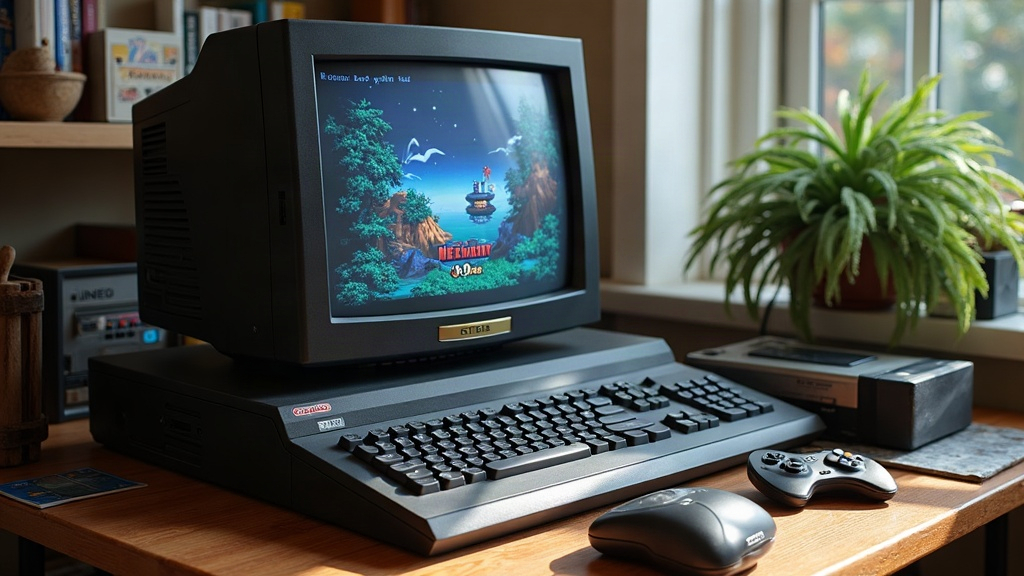
If you just picked up your first Sharp X68000 and you’re staring nervously at a decades-old SASI or SCSI drive that could die any day now, a SCSI2SD is the one upgrade you shouldn’t skip. It swaps out that aging mechanical drive for a solid-state solution that reads your original game images, keeps the machine running without drama, and lets you boot a massive library without spending your evening swapping floppy disks.
This guide walks first-time X68000 collectors through what a SCSI2SD actually does, how to set one up correctly, and the beginner mistakes that trip up almost everyone.
Why the X68000 Needs This in the First Place
The Sharp X68000 line (X68000, X68000 EXPERT, X68000 PRO, Compact, and the later Super/XVI models) came with internal hard drives wired up via SASI or SCSI, depending on the model year. Those drives are now over 30 years old. Most of them are either dead, dying, or making that clicking noise nobody wants to hear. Unlike floppy drives, which are mechanically simple and still have replacement belts floating around, a failed hard drive controller or a scored platter usually means your data is gone for good. Sometimes it takes the host adapter in the machine down with it.
A SCSI2SD gets around all of this by emulating a SCSI drive (or SASI, if you’ve got the right model and firmware) using a plain SD card. No moving parts, none of the failure modes that plagued spinning media from the late 80s and early 90s.
What You Actually Need
Before you buy anything, figure out which storage interface your specific X68000 uses:
- Early X68000 / X68000 EXPERT: SASI interface (older, trickier to emulate, check compatibility carefully before ordering)
- X68000 PRO / Super / XVI / Compact: Standard SCSI interface (much easier SCSI2SD compatibility)
You’ll also want:
- A SCSI2SD v5.x or v6.x board (v5.x is the one most people use for X68000, and it’s the best documented)
- A fresh, decent-quality SD card (16-32GB is plenty; go bigger and you’ll sometimes run into partitioning headaches)
- A USB-to-TTL or USB config cable (needed for v5.x) to program the board from your PC
- Known-good X68000 hard disk images in HDF/HDS format, either dumped from your own drive or pulled from the import collecting community
- The SCSI2SD-util configuration software (builds exist for Windows, Linux, and Mac)
Setting It Up Step by Step
-
Back up your original drive first, if it still spins. Even a drive on its last legs can sometimes be imaged once, using a SASI/SCSI-to-USB bridge or another working X68000 with disk utilities. Don’t skip this step. That original install might have save data or custom configs you can’t find anywhere else.
-
Configure the SCSI2SD board on your PC. Set the device type to “Hard Drive,” pick a SCSI ID (ID 0 is the standard boot drive), and nail down the sector size. This is where most people trip up: the X68000 typically expects 256-byte sectors on older setups, not the 512-byte default that most SCSI2SD guides assume (those are usually written with Amiga or Mac in mind). Get the sector size wrong and you’ll stare at a “No boot device” error with no clue why.
-
Load your HDF image onto the SD card, or build an empty raw image at a sensible size. Something between 40MB and 1GB is typical for period-correct capacity. Go too big and the X68000 BIOS can get confused.
-
Install the board physically, and match the termination to your setup: terminate it if it’s the only device on the bus, leave it unterminated if it’s sharing the ribbon cable with other devices.
-
Power on and watch the SCSI BIOS boot message. The X68000 should pick up the drive right away and boot into Human68k, same as it would with original hardware.
Common First-Time Mistakes
- Wrong sector size, which causes a silent boot failure with zero useful error messages
- Cheap or counterfeit SD cards, which tend to corrupt data after a few weeks of regular use
- Forgetting termination, which shows up as intermittent SCSI bus errors that look exactly like random crashes
- Oversized disk images, since some older Human68k versions choke above certain partition sizes (stick to the safe limits documented on the community wikis)
Is It Worth It for a Collector?
Yes, without question. Beyond just reliability, a SCSI2SD setup means you can keep multiple game libraries on separate SD cards or partitions and swap between them in seconds, basically giving you dozens of hard drives you can carry in a shirt pocket. If you’re a collector who actually wants to play original X68000 software, not just admire the hardware on a shelf, this is the thing that turns a museum piece into a machine you reach for on a Tuesday night.
Final Thoughts
Running Sharp X68000 games through a SCSI2SD isn’t just a nice-to-have upgrade. For most imported units floating around today, it’s really the only practical way to keep the machine usable for the long haul. Confirm your model’s interface, get the sector size right, and back up your original drive before you touch anything. Do that, and you end up with storage that’s stable, silent, and easy to expand, without fighting the platform the whole way.