Fix Dim Screen & Silent Speaker: Game Gear Capacitor Replacement
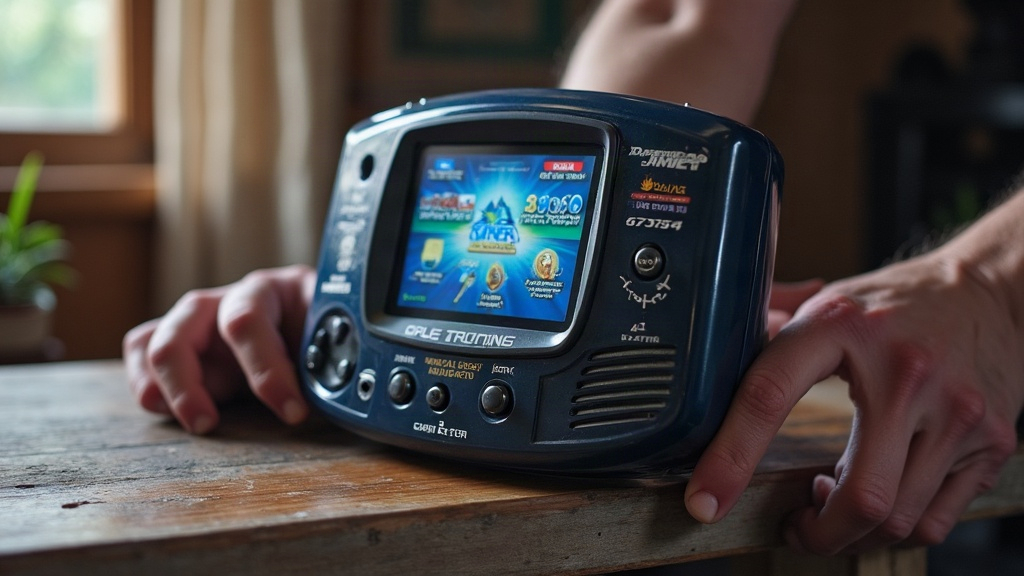
Fixing a Dim Screen and Dead Speaker on Your Sega Game Gear
If your Sega Game Gear has gone dim on screen and gone quiet on sound, you’re almost certainly dealing with worn-out electrolytic capacitors on the main board. The good news? This is one of the most reliable fixes in retro handheld repair. Below I’ll walk through how to diagnose it and swap the caps (a job everyone in the hobby just calls “recapping”) to get your screen bright and your speaker working again.
Why Game Gears Develop These Symptoms
Think about it this way: these units are pushing past 30 years old now, and every single one left the factory with electrolytic capacitors that simply weren’t built to last forever. Inside each cap sits a liquid or gel electrolyte, and over the decades that stuff dries out or starts leaking. The effects stack up:
- Capacitance drops, meaning the capacitor can’t smooth out voltage the way it’s supposed to.
- ESR (equivalent series resistance) climbs, which starves the circuit of the current it needs to run properly.
- Leaked electrolyte eats into nearby traces and pads, and it can quietly take out other components along the way without you noticing until later.
On the Game Gear, a small cluster of these capacitors lives in the power supply and in the backlight/audio circuits. Once they go bad:
- The backlight inverter stops getting clean, adequate voltage, so the screen dims (and often it’ll flicker a bit before finally giving up entirely).
- The audio amp loses its filtering stage, so the speaker falls silent or just puts out a faint, crackly buzz instead of actual game sound. Here’s a handy clue: if headphones still work fine, that points you right at the amp/speaker circuit.
See both symptoms at once on your unit? Recap it first. It’s cheaper, faster, and far more likely to solve the problem than swapping the whole board out.
What You’ll Need
- A replacement capacitor kit made for the Game Gear (retro-repair shops sell these everywhere; just double-check it matches your exact board revision, since there are a few different ones floating around).
- A soldering iron, temperature-controlled if possible, somewhere in the 15-40W range, with a fine tip.
- Desoldering tools: either a solder sucker pump or desoldering braid/wick.
- A flux pen or paste so your solder flows cleanly instead of balling up.
- Isopropyl alcohol (90% or higher) plus a soft brush or cotton swabs for cleanup afterward.
- A multimeter to check continuity and voltage.
- Small Phillips and Gamebit/security screwdrivers to crack open the shell.
Step-by-Step Capacitor Replacement
1. Open the Case and Remove the Board
Pop the battery out first, then tackle the back-panel screws (Game Gears love their security bits, so make sure you’ve got the right driver). Separate the shell halves carefully, keeping an eye on the speaker wire and the cartridge connector ribbon if your revision has one. Unscrew the main board and lift it free, no rushing.
2. Identify the Capacitors
Flip the board and look for the electrolytic capacitors: small cylindrical parts clustered near the power input jack and around the audio IC. Before you touch a single one, snap a photo of the board. You’ll thank yourself later when you need to confirm polarity and placement. Pay attention to the stripe on each cap, that marks the negative leg.
3. Desolder the Old Capacitors
Hit each capacitor’s pads with a bit of flux, heat the joint, and pull the solder away with your pump or braid. Wiggle the capacitor loose gently, don’t yank it, since overheated pads can lift right off the board. Go one capacitor at a time so you don’t lose track of what’s done.
4. Clean the Pads
Grab your isopropyl alcohol and brush and scrub away old flux residue along with any leaked electrolyte (you’ll recognize it as a crusty, greenish-brown gunk). Give the pads and nearby traces a close look while you’re at it. Corrosion hiding here can keep causing trouble even after you’ve put in fresh caps.
5. Install New Capacitors
Match the polarity exactly to how the originals sat. Slide the leads in, solder cleanly from underneath, then trim the excess with flush cutters. Do this for every single capacitor in the kit, even the ones that “look okay.” Visual inspection almost never catches electrolytic degradation, so don’t gamble on it.
6. Reassemble and Test
Before you snap the case shut, hook the board back up and power the unit on just to confirm the screen’s bright again and the speaker’s putting out sound properly. Once that checks out, go ahead and close everything up and screw it back together.
Troubleshooting If It’s Still Not Fixed
- Screen still dim: look at the backlight inverter board and its connector. Sometimes it has its own small capacitor that needs replacing, or the ribbon cable just needs reseating.
- Still no sound: test continuity on the speaker wires and check the volume potentiometer for grimy contacts (a shot of contact cleaner usually sorts this out).
- New problem, won’t power on at all: go back and double-check your capacitor polarity. A reversed cap can short the whole circuit.
Conclusion
A dim screen paired with a dead speaker on a Sega Game Gear is about as textbook a capacitor failure as you’ll find, and replacing them is a well-trodden, beginner-friendly fix that usually runs under $15 in parts. Take your time with the desoldering, get the polarity right, clean the pads thoroughly, and most units come right back to full brightness and sound. Honestly, few repairs in retro handheld restoration give you this much payoff for this little effort.